Installing TrackMyIVF (TestFlight)
A step-by-step guide to downloading the app and activating your beta.
Welcome to the TrackMyIVF beta program. To install the app on your iPhone, you will need Apple's official testing app, TestFlight.
Beta Access Check
Use the same email address where you received your beta invitation when you sign up in the app. If you use a different email, support may need to verify your beta access before it appears.
Step 1: Install Apple TestFlight
Before downloading TrackMyIVF, download Apple's free companion app, TestFlight, from the App Store:
- Open the App Store on your iPhone.
- Search for TestFlight.
- Download and install the TestFlight app.
Step 2: Accept the Invitation Email
Once your build is ready, you will receive an invitation email directly from Apple TestFlight.
- Open your mail app and look for an email from TestFlight / Apple with the subject: TrackMyIVF has invited you to test...
- Open the email and tap the blue button labeled View in TestFlight or Start Testing.
- This will launch the TestFlight app on your phone and link the beta to your Apple account.
Opening the email on a computer?
If you are on a Mac/PC, or if tapping the button does not launch TestFlight on your phone:
- Look for the Redemption Code (a 3-4 digit or alphanumeric code) printed inside the Apple email.
- Open the TestFlight app on your iPhone.
- Tap Redeem in the top-right corner.
- Enter the code and tap Redeem to install.

Step 3: Install TrackMyIVF
After tapping the link in your email, TestFlight will present the TrackMyIVF install screen:
- Tap the Install or Accept button next to TrackMyIVF.
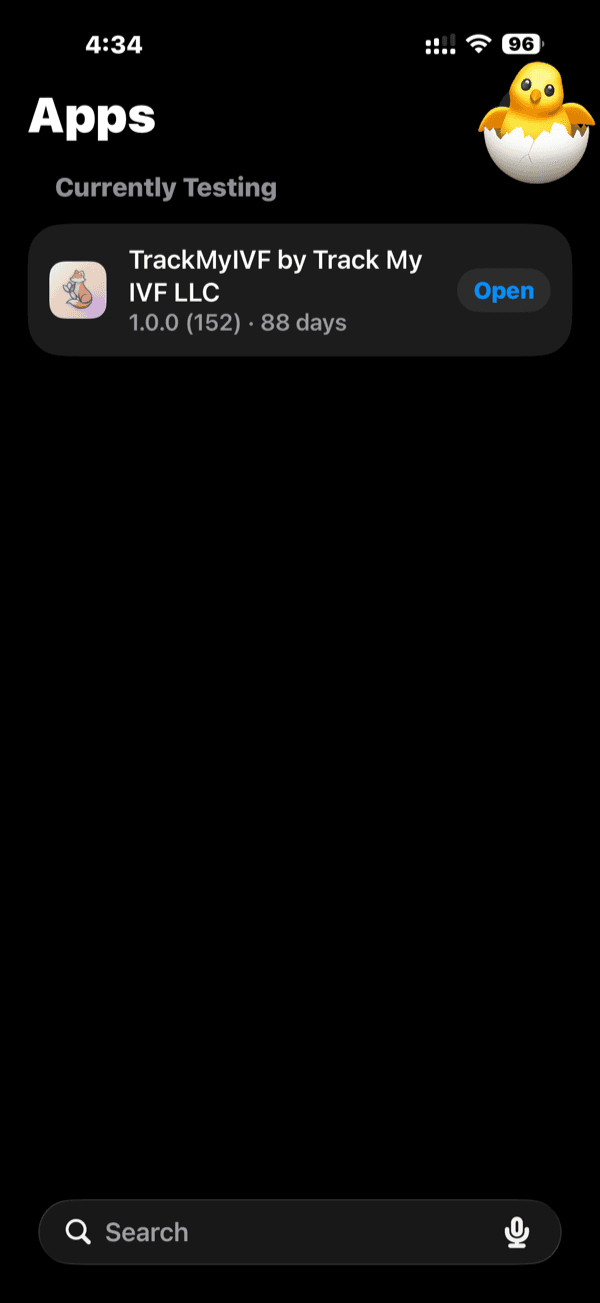
- Once the download completes, tap Open to launch the app.
- If prompted, choose the notification setting that matches how you want to receive reminders.
Step 4: Launch and Log In
When you open the app for the first time:
- Select Sign Up.
- Enter the email address where your invitation was sent.
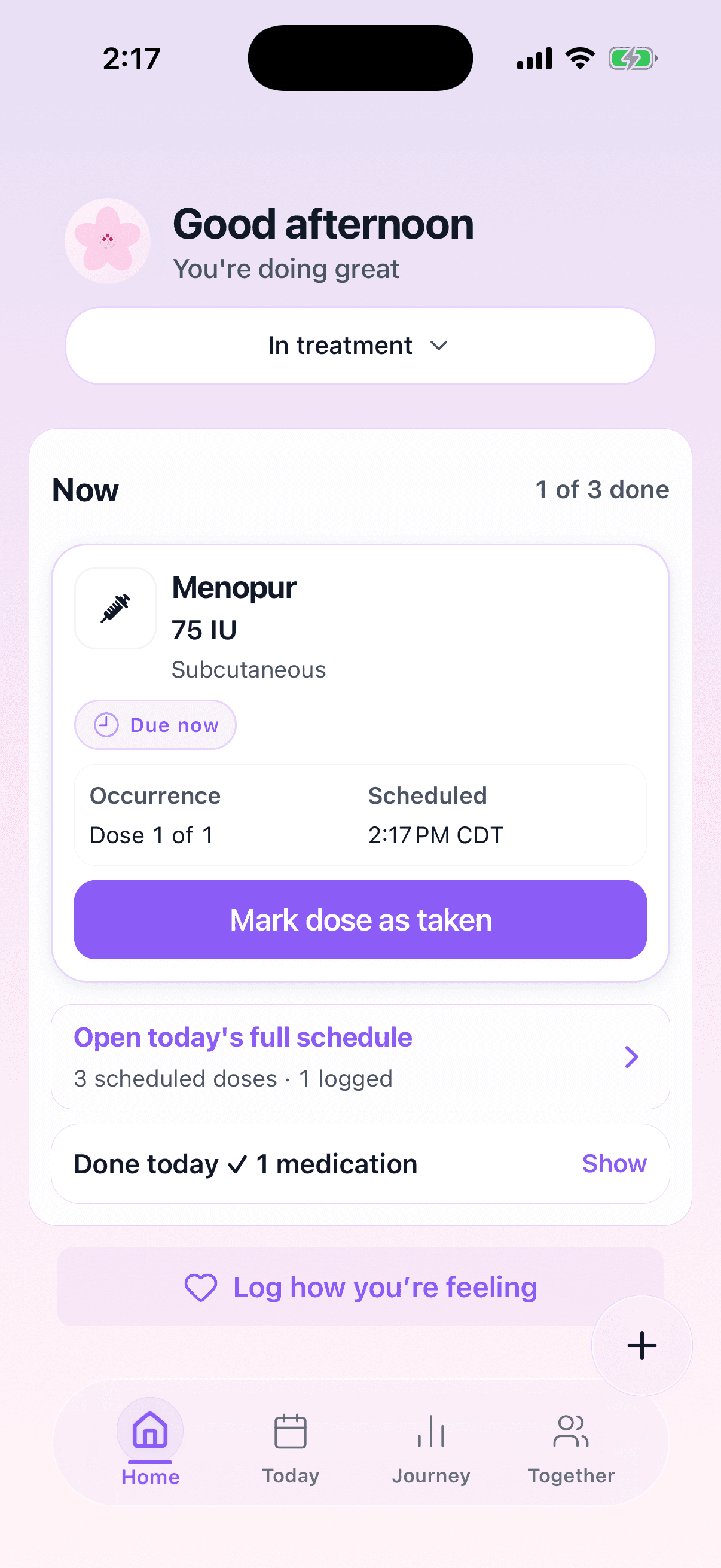
- Follow the onboarding steps to set up your IVF cycle and schedule.

Step 5: Confirm Beta Access
Beta access is tied to your approved TestFlight invitation wave. Public purchases stay paused while release and billing readiness gates are completed:
- Use the same email that received the TestFlight invitation whenever possible.
- The app checks your registered email against the invited beta wave records.
- No public payment is collected from this TestFlight setup path.

Use the invited email address so support can verify your beta access if anything looks wrong.
Need help during setup?
If the invitation email has not arrived after the expected beta-wave message window, or if you face any issues during installation, please reach out with the invited email address.